Separate the signal from game performance
The refresh rate describes how often the display can refresh its image. A 240Hz display can refresh more frequently, but it does not make the PC generate 240 frames per second. A graphics card may successfully send a 2560 × 1440 signal at 240Hz while a demanding game runs far below that frame rate.
Treat the decision as three checks. First, the graphics output, monitor input and cable must establish the intended display mode. Second, the CPU and GPU must render your games at useful frame rates with settings you accept. Third, the system must deliver frames consistently instead of reaching a high number only in brief peaks.
Passing the display-mode check does not prove the performance or consistency checks. Do not use the monitor advertised refresh rate as a promise of game performance.
Start with the games you actually play
List the games that matter most before comparing graphics cards or monitors. Separate fast competitive games from visually demanding releases, older or lighter titles and non-gaming work. The value of a high-refresh target changes with the workload and with what you want to see on the screen.
Decide what you are willing to change. A system may approach a higher frame rate with lower detail settings, upscaling or other performance options while producing a different image than it would at maximum settings. The useful target is the one that matches how you intend to play.
Official system requirements establish a starting point, but they rarely prove that a specific CPU and GPU combination will sustain your chosen target. Use independent measurements only when they identify the game version, processor, graphics card, resolution, settings and test method.
Check the performance constraint without guessing
At 1440p, the graphics card can have substantial work to do, but the processor can still limit performance in games that simulate many players, objects or rapid game-state changes. The limiting component can change when you lower settings or move between games.
Use a repeatable scene or a built-in benchmark when one is available. Observe typical performance, large drops in busy scenes, uneven frame delivery and whether changing resolution or graphics quality shifts the result in a repeatable way. No single utilization reading proves which component is responsible.
Drivers, game updates, background software and system configuration can change the result. GamingPodium has not performed a hands-on benchmark for this guide, so it does not assign a universal graphics-card recommendation.
Audit every part of the signal path
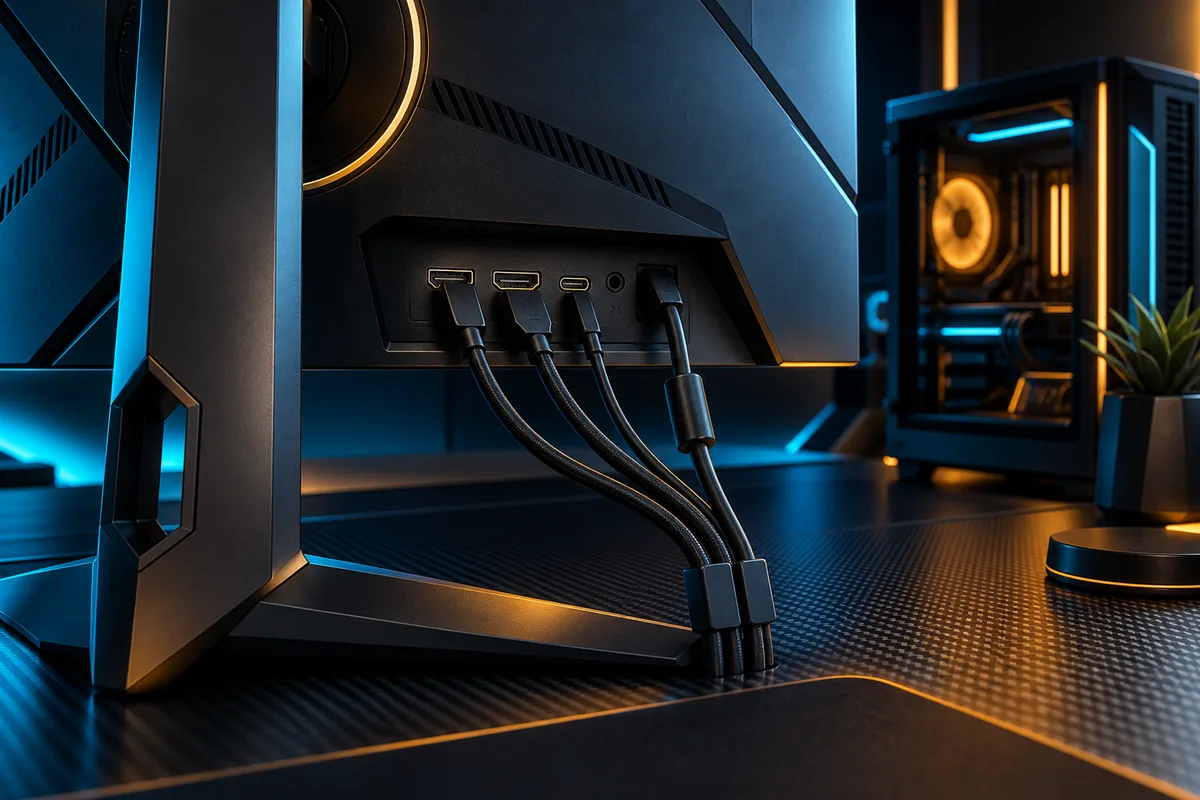
A high-refresh mode has to pass from the graphics hardware through the physical output, cable or adapter and monitor input before the display can use it. Check the exact graphics card rather than the GPU family alone because add-in card manufacturers can expose different physical ports.
Laptops need extra attention. Identify whether the port carries DisplayPort Alt Mode, which GPU drives it, how many lanes are available and whether a dock imposes its own limit. Two USB-C connectors that look alike can expose different capabilities.
Check the monitor manual for the supported resolution and refresh-rate combinations on each input. The maximum mode may be limited to one input or may require an on-screen setting. Adapters, extension cables, KVM switches, capture hardware and docks add more places where the mode can be limited.
Compare the exact DisplayPort and HDMI modes
DisplayPort and HDMI can both support high-resolution, high-refresh configurations, but a version name alone does not approve a setup. The source device, display, cable and enabled features must expose a compatible mode together.
DisplayPort documentation explains that newer capabilities can combine higher link bandwidth with Display Stream Compression, while USB-C DisplayPort Alt Mode can allocate lanes between video and USB data. HDMI documentation describes capabilities at the specification level, but the product still has to implement the required mode.
Do not ask which connector is always better. Ask which verified connection supports the complete mode on the two devices you plan to connect.
Check HDR, color depth and DSC separately
Resolution and refresh rate are not the only parts of a display mode. HDR and higher color depth require additional data. Depending on the equipment, the highest advertised mode may rely on Display Stream Compression or a different color configuration.
VESA describes DSC as a low-latency, visually lossless compression standard for display interfaces. Do not assume that it is active or available. Confirm support on the graphics output and monitor, then check whether the monitor manual associates it with a particular input or setting.
If enabling HDR or changing color settings makes the 240Hz mode disappear, recheck the mode tables for the exact hardware. Choose the compromise deliberately instead of quietly reducing color quality to preserve the largest refresh-rate number.
Use VRR instead of treating 240 FPS as a pass line
Variable refresh rate allows a compatible display to adjust its refresh timing within a supported range. A 240Hz monitor can still be useful when a game runs below 240 FPS. The practical value depends on the frame rates you achieve, the monitor VRR range, frame consistency and the games you play.
VESA AdaptiveSync Display certification tests variables including refresh rate, flicker, response behavior, frame drops and frame-rate jitter. Certification can provide a documented reference, but it does not replace checking the exact GPU, input and display mode.
Confirm the monitor certification or documented VRR support, then verify that VRR is enabled in the monitor, graphics software and operating system where required.
Verify the active result in Windows
After connecting the monitor, open Settings, System, Display and Advanced display in Windows. Select the correct display and inspect the active resolution, refresh rate and VRR information. Microsoft notes that the available refresh rates depend on display support and that some choices require a resolution change.
If the expected mode is missing, confirm the intended graphics output, test the monitor input documented for the maximum mode and temporarily remove optional adapters, docks or switches. Check the monitor on-screen settings, update the graphics driver and inspect Advanced display again.
Test HDR and color settings separately if they change the available mode. Change one variable at a time so the limiting part is easier to identify. The right target is the one the complete system can support in the games and settings you use, not simply the highest number on the box.
INTERACTIVE DECISION TOOL
Check your 1440p high-refresh evidence.
Enter results from your own repeatable test, then confirm each part of the display path. This tool compares only the evidence you provide; it does not benchmark your PC or recommend a graphics card.
Your entries stay in this browser page and are not saved or transmitted.
SHAREABLE EVIDENCE MATRIX
Know what each check actually proves.
A complete 1440p 240Hz decision needs evidence from every layer. One successful check cannot stand in for the others.
| Layer | Evidence to collect | Interpretation |
|---|---|---|
| Game measurement | A repeatable scene or built-in benchmark at your chosen resolution and settings. | Confirms The performance range of that tested game and configuration. Does not confirmThat the output, cable and monitor can expose a 1440p 240Hz signal. |
| Graphics output | The manual or specification for the exact graphics card, laptop or computer port. | Confirms The modes and features documented for that physical output. Does not confirmThat a monitor input, adapter or dock supports the same complete mode. |
| Monitor input | The monitor manual and its resolution and refresh-rate table for the selected input. | Confirms Which input and settings expose the intended display mode. Does not confirmThat the source or every intermediate device can deliver that mode. |
| Connection chain | Certification or product documentation for the cable, adapter, dock, KVM or capture device. | Confirms The documented capability of each intermediate part. Does not confirmThat similar-looking connectors or unverified cables behave identically. |
| HDR, color and DSC | A mode table or product document that covers the exact refresh rate and feature combination. | Confirms Whether the target may depend on compression, color settings or a specific input mode. Does not confirmThat enabling every feature together preserves the same available modes. |
| VRR | The documented or certified VRR technology, operating range and supported input. | Confirms The conditions under which variable refresh rate is supported. Does not confirmThat every game will remain inside the range or deliver consistent frames. |
| Active result | Windows Advanced display showing 2560 × 1440 and 240Hz together on the intended display. | Confirms The display mode currently established by the connected system. Does not confirm240 FPS, stable frame delivery or universal compatibility with another setup. |
Use product manuals for exact devices. Connector names and version numbers alone are not compatibility guarantees. Readhow GamingPodium verifies guides.
DECISION MATRIX
Compare the checks that matter.
Use this summary to keep your decision focused before you compare specific options.
| Decision | Compare | Confirm before buying |
|---|---|---|
| Game target | Your priority games, chosen settings and representative frame-rate measurements. | Use a repeatable scene or built-in benchmark and compare more than a brief peak value. |
| Display mode | The exact graphics output, monitor input, cable and supported 2560 × 1440 modes. | Check the manuals for both endpoints and verify the active resolution and refresh rate in Windows. |
| Variable range | VRR support, its operating range and the frame consistency your games deliver. | Verify the exact input and mode, then confirm that VRR is enabled across the monitor, driver and operating system. |
TRADE-OFFS
Choose the compromise that fits.
Neither option is universally better. Match the trade-off to your situation and verify the exact conditions.
OPTION 01
Target the full 240Hz mode
- Works when
- Your priority games benefit from high refresh rates and the complete system delivers performance you consider worthwhile.
- Watch for
- A successful 240Hz signal does not prove that a game will run at 240 frames per second.
OPTION 02
Use a lower frame-rate range with VRR
- Works when
- Your games vary in performance and the monitor remains useful for the rest of your setup.
- Watch for
- Confirm the supported VRR range and connection instead of assuming every mode behaves the same way.
OPTION 03
Resolve the constraint first
- Works when
- A repeatable test points to a connection limit or a component that prevents an acceptable result.
- Watch for
- Do not replace hardware from one utilization reading or a benchmark that does not match your configuration.
QUICK ANSWERS
Frequently asked questions.
Does a 240Hz monitor require 240 FPS?
No. The monitor can operate at 240Hz while a game produces fewer frames. The practical result depends on frame consistency, VRR support and the game. Treat 240 FPS as a possible target, not a universal requirement.
Can every modern graphics card output 1440p at 240Hz?
Do not assume so. Check the exact card or computer, physical output, supported display modes, monitor input and cable. Output capability also does not prove that the card can render a particular game at 240 FPS.
Is DisplayPort always better than HDMI for 1440p 240Hz?
No. Either connection may be suitable when both devices implement the required mode. Compare the exact graphics output and monitor input instead of choosing from the connector name alone.
Does DSC reduce image quality or add noticeable delay?
VESA describes DSC as visually lossless and low latency under its intended operating conditions. Confirm whether the exact devices use DSC for the target mode and whether the monitor requires a specific setting.
Can a gaming laptop drive a 1440p 240Hz monitor?
Possibly, but laptop ports require extra verification. Check which GPU drives the port, whether USB-C uses DisplayPort Alt Mode, whether a dock shares video lanes with USB data and which modes the manufacturer documents.
What should I do if Windows shows 240Hz only at a lower resolution?
Recheck the complete signal path and the monitor mode table. Microsoft notes that some listed refresh-rate choices require a resolution change. A different supported input, cable or configuration may be necessary, but the exact manuals should decide the next step.
SOURCES & VERIFICATION
Check the primary guidance.
These official references support the general checks in this guide. For a specific product or service, confirm the current official documentation before buying or subscribing.
- Microsoft SupportChange the refresh rate on your monitor in Windows
- DisplayPortDisplayPort frequently asked questions
- DisplayPortHow to choose a DisplayPort cable and not get a bad one
- VESADisplay Stream Compression
- HDMI Licensing AdministratorHDMI specification feature overview
- NVIDIACompare current and previous GeForce graphics cards
- AMDGraphics specifications
- VESAAdaptive-Sync Display compliance standard and logo program
Keep this checklist beside your shortlist and check the exact product documentation before you buy.
Explore more pc guides →