Start with the mode, not the connector name
Write down the exact result you want before comparing ports: resolution, refresh rate, color depth, chroma format, HDR, variable refresh rate and whether the mode relies on Display Stream Compression. That combination is the target the complete connection must carry.
The newest specification is not automatically the best purchase. If HDMI and DisplayPort both expose the same useful mode on your equipment, changing the cable does not increase game frame rate, reduce rendering load or create extra image detail.
Treat the connection as a chain. The source output, display input, cable and every device between them must share the mode. The lowest confirmed capability in that chain sets the result.
Understand what HDMI 2.2 and Ultra96 identify
HDMI Licensing Administrator documents a maximum HDMI 2.2 bandwidth of 96Gbps and names the new certified cable Ultra96. It also states that the Ultra96 feature name can identify a product whose maximum supported bandwidth is 64Gbps, 80Gbps or 96Gbps. The feature name is encouraged rather than mandatory.
That means HDMI 2.2 on a specification sheet is not enough to reconstruct every supported mode. Check the manufacturer’s stated maximum bandwidth, video-mode table, compression support and the exact input or output. The official Ultra96 cable supports up to 96Gbps, while the earlier certified Ultra High Speed HDMI cable applies to configurations up to 48Gbps.
HDMI 2.2 supports both compressed and uncompressed transmission. A headline maximum such as uncompressed 4K at 240Hz with full chroma and 10- or 12-bit color describes a specification capability, not a promise that a particular graphics card, console or display implements it.
Check the link rate behind DisplayPort 2.1
DisplayPort 2.1 is also an umbrella rather than one guaranteed maximum. VESA’s compliance requirements say a certified device must support at least HBR2 with DSC plus at least one listed 2.1 capability. UHBR support is one option, so the version label alone does not prove UHBR20.
Look for the implemented rate: UHBR10, UHBR13.5 or UHBR20. NVIDIA, for example, explicitly documents DisplayPort 2.1b UHBR20 on its GeForce RTX 50-series comparison and notes that its highest published modes use DSC. A different card carrying a DisplayPort 2.1 label may expose another rate or port configuration.
Cable markings help only after you know the required rate. DP80 identifies certification for UHBR20. VESA has also introduced newer certified cable categories as the standard evolved. Match the current VESA certification and length to the mode instead of trusting an unverified “8K” marketing label.
Let the platform narrow the choice first
On a desktop PC, compare the exact ports on the shipping graphics card with the exact inputs on the monitor. Add-in card designs can differ, and the best shared mode may be available on only one input. Laptops add USB-C Alt Mode, docks and lane sharing, so the connector shape is not proof of the link rate.
On a console and television, the available ports may decide before any bandwidth comparison. Sony documents PS5 support for HDMI 2.1 and 4K 120Hz output and recommends the included cable. Buying an HDMI 2.2 cable cannot add an HDMI 2.2 output to that console.
Audio return, capture hardware, receivers and switches can make HDMI the practical television path even when a PC monitor offers DisplayPort. Verify every intermediate device or connect the source directly while diagnosing a missing mode.
Account for color, HDR and compression
Resolution and refresh rate do not describe the whole signal. Increasing color depth, retaining full chroma and enabling HDR can raise the required data rate. A mode that appears at 8-bit color may change when 10-bit HDR is enabled.
DSC can allow demanding modes to fit within an implemented link. VESA describes DSC as visually lossless, and HDMI 2.2 incorporates VESA DSC 1.2a. Still, both endpoints must support the required compressed mode; a cable cannot provide missing DSC support.
Do not convert interface bandwidth into a game-performance claim. Link capacity carries the display signal. The processor, graphics hardware, game and settings determine the frames rendered before that signal is sent.
Verify a certified cable instead of a marketing phrase
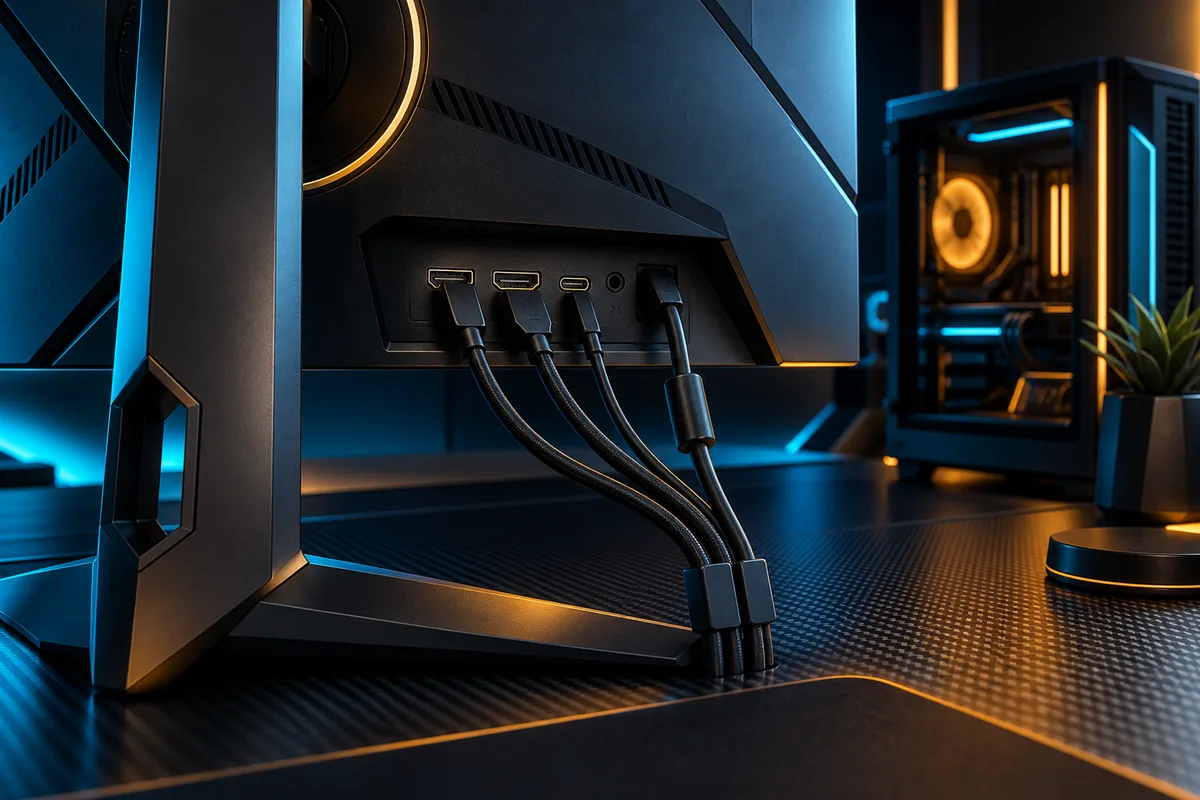
For HDMI, look for the official Ultra High Speed HDMI or Ultra96 certification label on the package and the official name on the cable jacket. HDMI Licensing Administrator says the label can be scanned with a standard QR code app to verify certification; online verification banners can also identify the brand, model and length.
For DisplayPort, use the VESA certified-product and component lists and match the cable class to the required UHBR rate. Certification applies to a model and length; do not assume that every length or visually identical cable has passed the same test.
Keep adapters, docks, extension cables, KVM switches and capture devices in the audit. Test a direct connection when the intended mode is absent, then add intermediate devices back one at a time.
Confirm what the system is actually sending
In Windows, open Settings, System, Display and Advanced display. Select the intended screen and check the active resolution and refresh rate. Then inspect the graphics control panel and monitor information screen for color depth, HDR, VRR and link details when they are exposed.
On a console, use its video-output information screen and confirm the television or monitor input mode. If the target is missing, update system and display firmware, check the documented high-bandwidth setting, connect directly and change one variable at a time.
Stop when the existing path produces the complete mode you selected. A newer cable remains useful only when the current cable is uncertified, unreliable or cannot carry a mode that both devices already support.
DECISION MATRIX
Compare the checks that matter.
Use this summary to keep your decision focused before you compare specific options.
| Decision | Compare | Confirm before buying |
|---|---|---|
| Source output | The exact graphics card, laptop or console output and the modes its manufacturer documents. | Check the physical port, link rate, DSC support and any model-specific limits instead of relying on the GPU family name. |
| Display input | The monitor or television input, supported mode table and settings required for its maximum modes. | Use the manual to verify resolution, refresh rate, color, HDR and VRR on the exact input you will use. |
| Complete mode | The certified cable plus every adapter, dock, switch, receiver or capture device in the path. | Connect the system and verify the active mode in Windows, the console menu and the display information screen. |
TRADE-OFFS
Choose the compromise that fits.
Neither option is universally better. Match the trade-off to your situation and verify the exact conditions.
OPTION 01
Keep the connection that already works
- Works when
- Your current path exposes the full resolution, refresh rate, color, HDR and VRR combination you intend to use.
- Watch for
- A new cable or specification label cannot raise game frame rate or image quality when the active mode is unchanged.
OPTION 02
Prefer DisplayPort on a PC monitor
- Works when
- The graphics card and monitor document the best shared mode on their DisplayPort inputs, including any required UHBR rate or DSC.
- Watch for
- DisplayPort 2.1 does not automatically mean UHBR20, and USB-C docks can divide lanes between video and data.
OPTION 03
Prefer HDMI for a console or television
- Works when
- The platform exposes HDMI only or the television reserves its gaming modes, VRR and audio features for specific HDMI inputs.
- Watch for
- Current console support and the display mode decide the cable requirement; HDMI 2.2 is not automatically necessary.
QUICK ANSWERS
Frequently asked questions.
Is HDMI 2.2 always faster than DisplayPort 2.1?
No useful decision follows from the version names alone. HDMI 2.2 can be implemented with different maximum Ultra96 bandwidths, while a DisplayPort 2.1-certified device does not necessarily support UHBR20. Compare the exact link rates and modes implemented by both endpoints.
Do I need HDMI 2.2 for 4K 120Hz gaming?
Not automatically. Existing HDMI configurations can support 4K 120Hz when the source, display, settings and certified cable implement the required mode. For example, Sony documents 4K 120Hz support on PS5 through HDMI 2.1. Verify your own hardware rather than buying from the newest specification number.
Does DisplayPort 2.1 guarantee UHBR20?
No. VESA states that a certified DisplayPort 2.1 device must meet a minimum requirement and support at least one defined 2.1 feature; UHBR is one possible feature. Check whether the product explicitly lists UHBR10, UHBR13.5 or UHBR20.
What do DP80 and Ultra96 mean on a cable?
DP80 identifies a VESA-certified cable intended for the UHBR20 link rate. Ultra96 identifies the certified HDMI cable that supports up to 96Gbps and all HDMI 2.2 applications. The cable does not add a mode that either connected device lacks.
Is DSC bad for gaming image quality or latency?
VESA describes Display Stream Compression as visually lossless, and both standards can use DSC for demanding modes. This guide does not claim that every implementation behaves identically; confirm that both endpoints support the required compressed mode and test the active configuration you plan to use.
Will changing from HDMI to DisplayPort increase FPS?
Not by itself. A connection may unlock a display mode that was unavailable on another port, but game frame rate still depends on the game, settings and computer. If both connections expose the same active mode, changing the cable is not a rendering upgrade.
SOURCES & VERIFICATION
Check the primary guidance.
These official references support the general checks in this guide. For a specific product or service, confirm the current official documentation before buying or subscribing.
- HDMI Licensing AdministratorHDMI 2.2 Specification Technology Overview
- HDMI Licensing AdministratorHDMI Ultra96 Feature Name
- HDMI Licensing AdministratorUltra96 HDMI Cable and Ultra High Speed HDMI Cable
- VESAVESA releases DisplayPort 2.1 specification
- VESA ComplianceDisplayPort 2.1 support and certification requirements
- NVIDIACompare current and previous GeForce graphics cards
- PlayStation SupportHow to troubleshoot picture and sound issues with PS5
- Microsoft SupportChange the refresh rate on your monitor in Windows
Keep this checklist beside your shortlist and check the exact product documentation before you buy.
Explore more pc guides →