Roles
Map each tool to one clear job
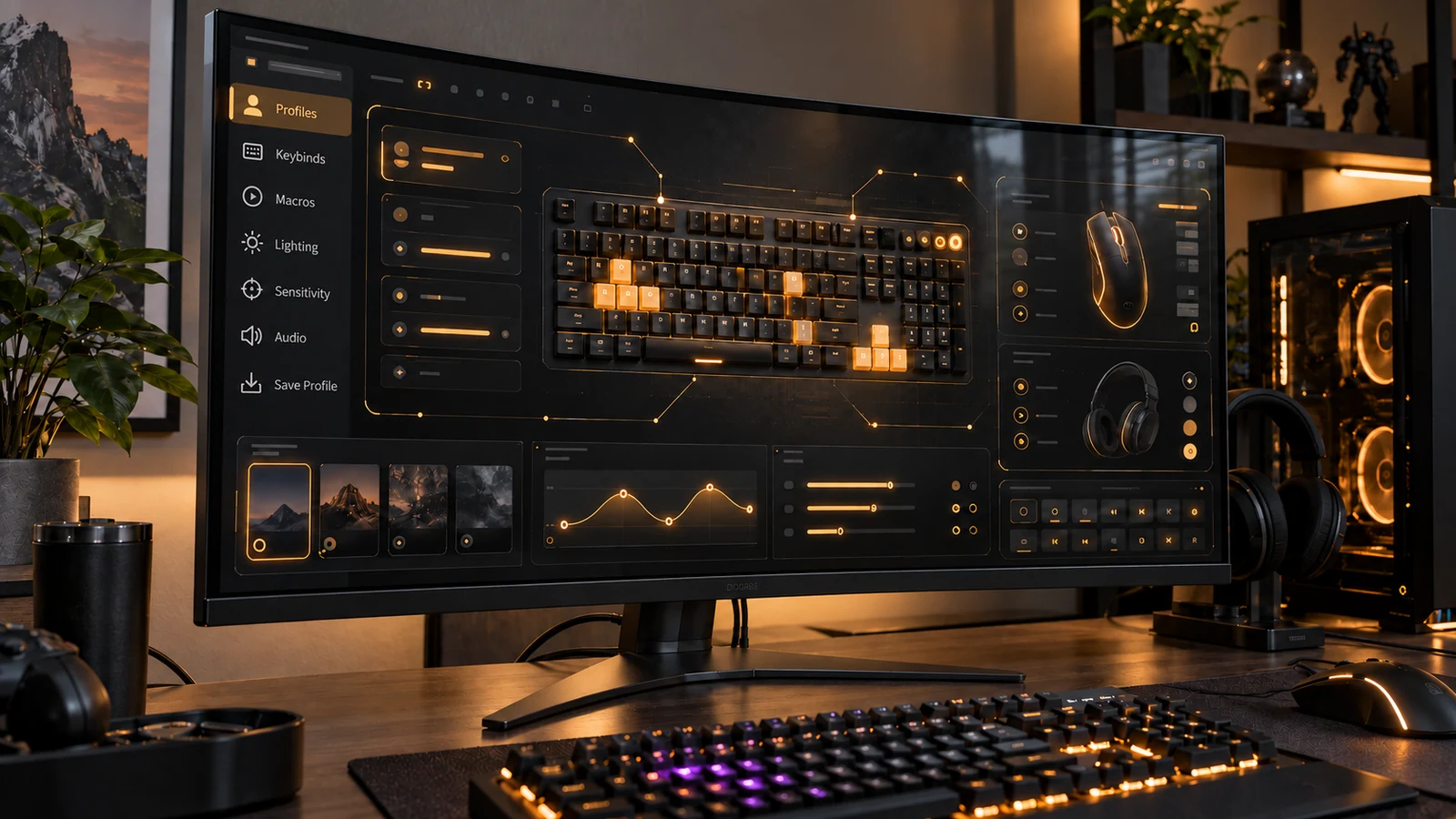
List the software you normally open for gaming: stores and launchers, voice chat, capture tools, overlays and utilities for your keyboard, mouse, headset or lighting. Beside each one, write the job you expect it to perform and the games or devices that depend on it.
Look for overlapping jobs rather than chasing a target number of installed apps. Two launchers may be necessary for different libraries, while two capture tools may duplicate a task you use only occasionally. Keep account access and saved device profiles in mind before removing anything.
Startup
Control what starts and stays active
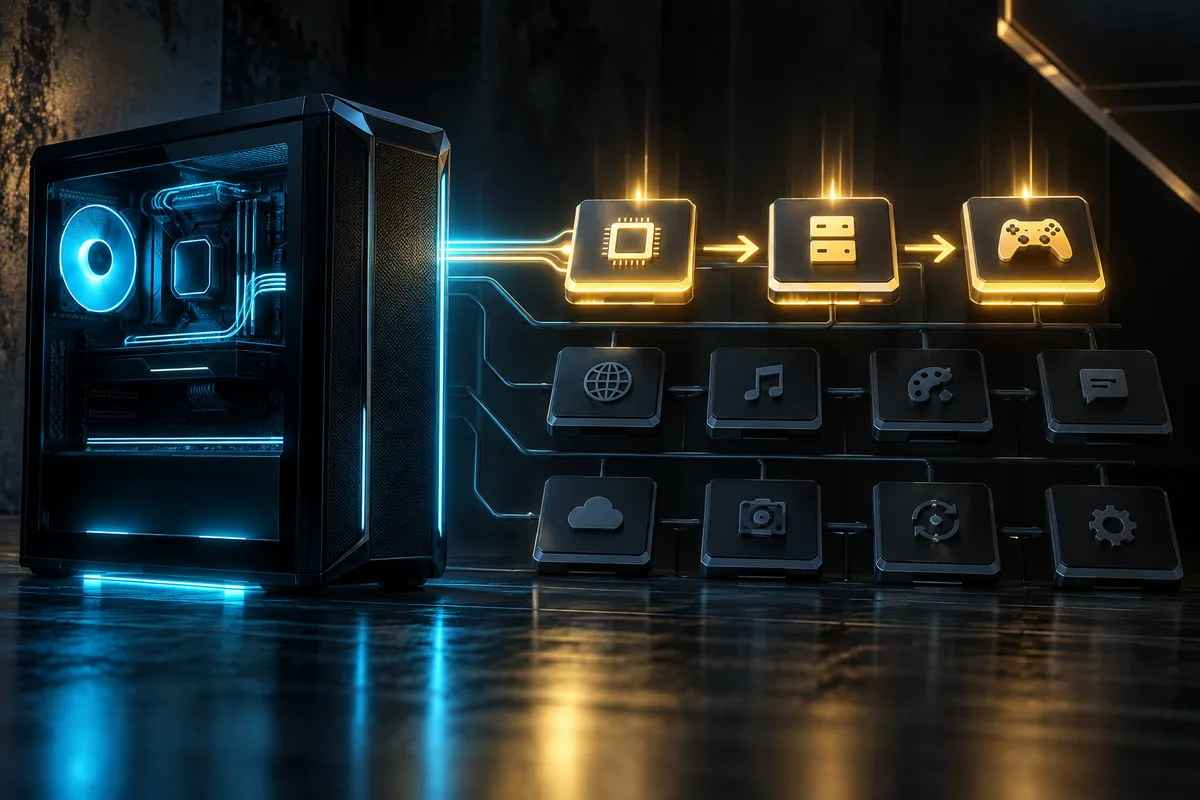
Windows exposes registered startup applications in Settings and Task Manager. Task Manager also reports their startup impact, which can help diagnose login delays; that label is not a measurement of gaming performance. Decide which tools truly need to be ready as soon as you sign in.
Background controls vary. Some supported apps expose permissions in Windows, while desktop applications may require their own settings. Check both places, and keep background access when a feature you rely on—such as voice, notifications or a device profile—requires it.
Change
Change one thing, then test your routine
Start with the reversible change: stop one nonessential tool from launching automatically, then restart if needed and use your normal games, voice chat and peripherals. This makes a missing function easier to connect to the setting you changed.
If you decide an application is no longer needed, save any configuration or account details you may need and use the standard uninstall path in Windows. Do not delete program folders as a substitute for uninstalling. Keep Windows and the software you retain current through their supported update methods.
DECISION MATRIX
Compare the checks that matter.
Use this summary to keep your decision focused before you compare specific options.
| Decision | Compare | Confirm before buying |
|---|---|---|
| Role | What each launcher, voice app, capture tool or peripheral utility actually does. | Write one reason to keep each tool and identify overlapping jobs. |
| Background behavior | Automatic startup, background activity, notifications and updates. | Check Windows settings, Task Manager and the application’s own controls. |
| Safe change | Disabling automatic launch against uninstalling the application. | Change one tool, restart if required and test the games and devices you use. |
TRADE-OFFS
Choose the compromise that fits.
Neither option is universally better. Match the trade-off to your situation and verify the exact conditions.
OPTION 01
Keep a tool always ready
- Works when
- You need its notifications, device profile or voice connection every session.
- Watch for
- Automatic startup and background activity should still be intentional, not merely accepted by default.
OPTION 02
Launch it on demand
- Works when
- You use the tool occasionally and can open it before the game or task that needs it.
- Watch for
- Confirm that required updates, device profiles or capture functions still work when expected.
QUICK ANSWERS
Frequently asked questions.
Does disabling a startup app uninstall it?
No. Windows lets you prevent a registered startup app from launching automatically without removing the application. You can still open it manually and re-enable automatic startup later.
Should I disable every background gaming app?
No. Some tools need background activity for notifications, voice, updates or device functions. Decide by role, change one setting at a time and verify the result instead of disabling everything at once.
SOURCES & VERIFICATION
Check the primary guidance.
These official references support the general checks in this guide. For a specific product or service, confirm the current official documentation before buying or subscribing.